I recently met a student with an acquired print disability. He needed access to books and other print materials. Seems like an obvious solution, right? Get him a tablet, digital copies of his book, and he’s all set. Problem is, he doesn’t have a tablet, and the student said that he really doesn’t like using digital text. That’s important because one of the often broken rules of using any kind of technology is that we never use technology for technology’s sake. That’s how we get Skynet and the robot apocalypse. Besides, we don’t want device abandonment. That’s what happens when an AT user (or really the user of any technology) decides not to use the device because it’s too much trouble than it’s worth. For this student, the idea of using digital text just wasn’t appealing. Why would I waste my time and his trying to convince him of “The Healing Power of Digital Text?” Instead, I looked at the difficulty the student was having-- he had a tough time turning pages because it took a bit of effort to actually grab and hold each page to turn it. He needed something to help him grip the page to turn it. The solution we used was a pretty simple one. We used a rubber glove to help improve his grip on the pages. OK, so it's really a nitrile glove, but the principle is still the same. The material of the glove has higher friction with the paper than just the student's finger alone. Wearing the glove would give him enough friction to drag the page along as he moved his finger.
The student couldn’t wear a full glove (sorry Michael Jackson fans), but he could wear the cutoff fingers from the gloves. The two digits he really needed were the index finger and the thumb.
With those two, he was able to easily grip and turn the page. His smile and “Oh wow! That’s nice! It’s much easier,” told me that we had found the solution for him. Sometimes when we need to find assistive technology for someone, we get too caught up in trying to find the high-tech solution instead of being open to the “just right” solution. Understanding the individual’s needs and listening to the person are the best ways to find a workable solution and quite possibly avoid the robot apocalypse.
For this post, I am pleased to present an article from "long time reader, first time writer," Dan Fendler. Dan is an AT Specialist in Delaware, and he knows his stuff. Of all of the people I know/read/follow in the field, Dan has to be one of the best. He has a great understanding of the field. In asking him if I could post his article, I wanted to know how I should refer to him. He said, "AT Specialist-In-Perpetual-Training." I think that's what makes him so good and ahead of the AT game. So I present to you his article looking at alternatives to smart phones for individuals with visual impairment. And for those of you looking to get away from a monthly cell bill, there's some great info for you in here too! Enjoy!
Can I Connect?
Connection possibilities without
smart phones for people with visual
impairment
By Dan Fendler, University of Delaware
Overview
Look around you. Practically everyone
these days uses some type of smart
phone. The phones have become a
staple of everyday life. Whether used
for basic business functions, like keeping
a calendar or email, or for social
interaction through LinkedIn, Facebook,
Twitter, Instagram, or any other apps
that help you stay in touch with your
world, the phones are everywhere.
What may be more important to some,
many smartphones have remarkable
features that can really benefit people
with visual impairment. However, what if you simply cannot
afford the cost of a typical monthly smartphone bill. Typical data usage
carries a significant monthly cost. A
young man who came into one of our
Assistive Technology Resource centers
put it this way: when faced with the
high cost of his smart phone data plan,
he had to choose between paying rent
and keeping his phone. He gave up his
phone.
Apple’s Accessibility Features
In June of 2009, Apple changed the
world of smartphones forever by announcing the addition of an
accessibility feature in their operating
system (called iOS). The feature, called
VoiceOver, was introduced in the
iPhone 3GS. Apple describes VoiceOver
this way: VoiceOver is a gesture-based screen reader that
lets you enjoy the fun and simplicity of iOS even if
you can’t see the screen.
With VoiceOver enabled,
just triple-click the Home
button to access it
wherever you are in iOS.
Hear a description of
everything happening on
your screen, from battery
level to who’s calling to
which app your finger’s on.
You can adjust the
speaking rate and pitch to
suit you. For people with a visual impairment,
there is little argument that this feature
has been a real game changer. Once
inaccessible to many, iPhones were now
accessible to people with a visual
impairment, even those who were
blind. These features are truly amazing, but
help only if you could afford the price of
a monthly smartphone data plan. Most
smart phones require voice, text and
data plans.
Sustainable Smart Phone Options
Is there a way you can benefit from the
accessibility features of a smartphone without incurring a costly monthly bill?
There just might be. Lloyd Schmidt, a Delawarean who is
blind, does not have a cell phone. He
does carry an iPod Touch, which gives him all of the conveniences of a smart
phone when he has an internet
connection. “At home and in many
other facilities, I connect to the internet
through a wireless Wi-Fi,” Lloyd said.
“This gives me the opportunity to make
and receive telephone calls, send and
receive emails, and use the various apps
on the device. I can do all of this
without having a monthly bill!” Lloyd continued, “I can make and
receive calls with FaceTime, Skype and
GV phone. I have all of these apps on
my iPod Touch.” The accessibility features found in
Apple’s iPhone are also available in their
other tablets and music players. The
iPad, the iPad Mini and al iPod Touch all
run on the same operating system (iOS)
and have all the same accessibility
features built in, including VoiceOver.
Wireless Hotspot Availability
To determine if you could survive
without a cell phone, you should
evaluate how you use a phone today.
For the iPod Touch to be a viable
solution, you would need reliable access
to the internet. Lloyd indicated that he
has experienced some challenges
contacting DART (the bus service in
Delaware). “Since I use Paratransit,
sometimes it’s hard to get Wi-Fi since
there is no Wi-Fi at the connecters,” he
said. He has found that “Wi-Fi is
available in all libraries and most state
office buildings. It is also available in
many restaurants and convenience
stores.” Consider how, when and where you use
your phone today. If you simply must be
connected 24/7, this option is probably
not going to work for you. However,
there are a growing number of Wi-Fi
hotspots available today. If you are a
Comcast customer, you might be aware
that they are setting up wireless
hotspots all over the country. In fact, if
you had your Comcast equipment
updated in the past year, chances are
good that your home or business is now
one of those hotspots. The controversial
nature of these actions aside, this opens
up many possibilities that did not
previously exist. For more details on the
controversy or to find Comcast hotspots
in your area, Google “comcast xfinity
hotspot” or click this link for a map of available hotspots.
Useful Apps for Vision
With widely available internet access, it
is possible to use of many apps designed
for those with visual impairments. Apps
that run not only on the iPhone, but also
on the iPad, Mini and iPod Touch as
well. Location sensitive apps like GPS
LookAround and BlindSquare;
identification apps like TapTapSee,
ColorID, and EyeNote; document
converting apps like the KNFB Reader;
and environmentally sensitive apps like
Light Detector. It is possible to make
phone calls with FaceTime, Skype or
Talkatone. Lloyd shared some of the iPod apps he
uses regularly: “Some other apps that I
use are: audio recorder, note pad,
phonebook, appointment calendar,
money reader, BARD book reader, light
detector, newspapers, whitepages, Smartphone Alternatives - 10/8/2015 3
music and podcast player, as well as a
web browser to browse the internet,
and a few accessible games. There are
two cameras to take pictures of print
and OCR software to read the print. I can type and share documents with
others using an app and access them
from anywhere using Dropbox, Google
drive, and Evernote. I can also access
them from my home computer and any
other computer since they are located
on the internet.”
Summary
If you think this might be a viable
solution for you but still have questions,
please feel free to contact me at
danfendler@gmail.com. I would be
happy to help answer any questions you
may have.
Since last semester, I've seen a lot of students needing help with note taking. I knew this was coming, so this happened before school started.
I got a lot of new Livescribe pens and notebooks to meet the demand for them. However, I'm finding that a lot of students are interested in using a regular digital recorder. I've heard people complain about having to listen to a lecture again, but some students are learning that recording the whole lecture doesn't mean you have to listen to it in its entirety every time.
One digital recorder I've made available to my students is really making a difference. It’s the Olympus DP-311 digital audio recorder, and it’s a great little powerhouse jam-packed full of wonderful features.
First, it has BIG buttons for the three major recorder functions on the front face of the device. There’s the “Play” button to playback recordings, the “Stop” button to stop playback, and the “Record” button to make a new recording. This has become a go-to recorder for my students who have a visual impairment. What they like is that the buttons are easy to find because of their size and because they are slightly raised. That’s big considering a lot of the digital recorders have very small buttons that can be difficult to see let alone feel. This recorder also has a speed control. Now this is big, especially for helping a student better understand what’s being said in lecture. If I use a recorder to help with my note taking, I can slow down and replay any section I didn't understand so I can make sure I understand exactly what’s being said.
But wait, there’s more!
The recorder also has a noise reduction feature. So that "hum" from the air conditioning unit or the lawn mower buzzing outside the window won’t show up as loud in the recording. This is important if the person using the recorder is easily distracted or has trouble focusing. It has an 81-hour battery life, 166 hours of recording time built-in, and a 2GB memory expandable by the SD card slot at the top. However, I wouldn't recommend getting an SD card bigger than say 4 GB. Why not? Well, a bigger card brings the temptation to not pull recordings off of the recorder. Why pull off the recordings? So you can keep them on some sort of computing device or cloud storage for use later (save them to Evernote or OneNote). Think about how often you offload the pictures from your phone. See? You want a way to get recordings off of a device, and this one uses an SD card, so make sure you have an SD card reader or you could be out of luck.
The only thing this recorder lacks is a USB port for quick connection to a computer. For that, you have to move up to the VN-722PC, which, while still a nice device, lacks the three large control buttons. You also get the ability to save your audio as an MP3 file or as a WMA (Windows Media Audio) file. For the extra money, having the ability to save all of your audio on a computer is definitely worth it, especially if you want to refer to past recordings.
How do I use it?
So when it comes to using digital recorders, folks who don't use them efficiently typically think that you have to listen to the entire recording.
"Marvin, I don't have time to listen to the entire lecture again!" I know you don't. I'm proposing another way of using the recorder.
Suppose you are recording a lecture, and at times where you feel yourself getting lost or losing what's being said you wrote down the time on the recorder? Then, when you're going over your notes, you would see those different times written down. You could fast forward or rewind to that time and listen to the lecture at that point. Listen to as much or as little as you want or need to in order to get the information you need. It's all a matter of what helps you most. The most important thing is that you are functional with whatever technology you choose.
Something to consider as well is that these same tools can be used in the workplace, similarly to how they are used in school. In the workplace, people often take notes during meetings and presentations. If that same person had issues with taking notes in school, odds are those same difficulties will be present in the workplace. So instead of "moth-balling" that digital recorder after graduation, offload the recordings and get ready to use it at work. Do make sure you get the permission of the parties in the meeting to record it, especially if the recording will be shared. This can also be an issue in school, but it's not an insurmountable one. At the end of the day, what matters is that the person needing a digital recording as assistive technology can use it.
Think about when and how you learned to take notes. Was it formal instruction? Were you in a class specifically addressing note-taking and/or study skills? Were you just told to take notes in class one day? How did you learn to take notes?
One of the most common things I have students report difficulty doing is taking notes. Taking notes can be difficult because of the very subjective nature of note-taking. Usually, when I'm taking notes, I'm writing down or typing those thing I find important to know. I'll write things that help me activate prior knowledge of a subject, and I'll write what I need to about the new material that help me learn that new material. If I have a learning disability or processing disorder that prevents me from being able to distil useful information from a lecture while writing or typing notes, note taking can become harder. Factor in the lack of "formal training" in note taking most students have, and the difficulty level increases.
Typically, students having trouble taking notes themselves will use a note-taker accommodation. Incase you don't know, a note taker is usually a student who takes notes for other students who need them. Depending on the campus resources, the note taker may be paid or otherwise compensated for taking notes. Although sometimes, the note taker is a volunteer. How the notes are disseminated to the students who need them can vary quit widely, so we won't look at that. We can't forget that note taking is a subjective activity, so it can be difficult for a note taker to get everything the student with the accommodation needs. Factor in a learning disability and it can be even more difficult to make those notes useful.
Options Abound!
Digital (audio) recorders. Audio recordings of lectures are an older tool in the note taking arsenal. Now with the proliferation of Smartphones and inexpensive digital recorders, it's easier for students to record class lectures and replay them whenever they want. I've heard lots of arguments against doing this from students and instructors.
Instructors usually have the argument that if they allow students to freely record their lectures, no one will show up to class. Interestingly, I have heard the same excuse reason given as for why instructors don't want to give students copies of their digital presentations. I haven't seen any studies looking into the validity of this claim, but I would certainly love to see something comprehensive so we can put this thing to bed.
There's an argument to be made for student responsibility. To illustrate this, I'll draw on the analogy of eating at a fine dining establishment. If I go to Chez Quis (thank you Mr. Bueller), order their most expensive meal, and then proceed to dump the meal in the trash without eating a bite, I'm not likely going to be asked to leave the restaurant. I will most definitely have to pay the bill regardless of whether or not I eat the food. I'm responsible for whether or not I eat the food I've purchased. If I throw it away and stay hungry, I have no one to blame but myself. The chef may be insulted by my disposal of his culinary masterpiece, but he'll typically return to the bottom line-- it's my loss. I've paid my money, and if I choose to pass on the meal, that's my responsibility. Similarly if I order the meal, but order it to go, it's my meal to eat whenever I want because I've purchased it.
Schools are the restaurants, instructors are chefs, students are diners, and lectures are the food. Instructors get paid by institutions and students pay the tuition and fees which go to pay those instructors. I understand class enrollment is important, but enrollment isn't the same thing as bodies in seats. I don't remember professors taking daily attendance. I do remember being responsible for material on tests, and I do remember tuition bills coming in the mail. If students are paying for the content, who are you/we to require that they consume it according to our rules? Let the students record the lectures. Heck, be proactive and publish the lectures as a series of podcasts that the students can subscribe to. You may be surprised by just how much better students do with the ability to have multiple exposures to the material.
So let's look at some tools!
Livescribe Smartpens.
Livescribe has been making high-quality Smartpens for some time now. How do they work? Well, they use a special paper and a special pen. The pen has a microphone to record the audio it's near. So if I'm in a meeting or lecture, the pen will record what's said. Now remember that special paper I mentioned? Well, the pen has a camera close to the tip that records what you write on the special paper. So, when you are going back over your notes and you can't remember exactly why you wrote something down, just touch the pen tip to what was written, and the pen will play back the audio it recorded when you wrote what you touched with the pen. I know. Sounds a little complicated? Well, check out this video which explains how it works pretty well.
Now, the pen works great if you can take some notes and you need a little prompting to help them have more meaning for you. This isn't necessarily the tool you want to use if you need to re-listen to the whole lecture. This also might not be for you if you can't take paper notes. If that's you, you may be better off using a digital recorder and recording the lecture so you can listen to it later.
Tablets/Laptops
Some people prefer to type their notes to writing them. I'm one of those people. Some people have to type their notes because they're not able to write or because their writing isn't legible to them. If this is the case, tablets, laptop computers, and even smartphones become viable options for typing notes. Yes, I said smartphones. We'll come back to that later.
With a computing device, I can type into any number of note taking applications. I'm not going to list them here because there are so many with so many different features. Also, what you use should be greatly influenced by your needs. You could use anything from Word to Pages, Evernote to Notability to OneNote. You could even just use the simple Notepad in Windows or Notes in Mac OSX. The only thing that matters is that the application meets your needs.
Similarly, the hardware should meet your needs. If you can do what you need to do on a laptop and you have a laptop you can take and use, by all means do so. If you have a tablet and that works for you, enjoy. If you need external keyboards or other peripherals, definitely use those. As long as the system works for you, go with it.
I mentioned smartphones earlier. They can actually be as viable as note taking devices as tablets. More often than not, they can run the same programs tablets can run, so they can be used in much the same ways. I know the screens are smaller than tablet screens, but for some people, this is a good thing. I once worked with a woman who had great difficulty writing and typing. She was able to text with her thumbs fairly easily. So when we were looking at options for her to take meeting notes, her smartphone was a no-brainer. She used notes at first and then switched to Evernote so she could sync her notes in the cloud and have access to them anywhere. So don't count out those smartphones or iPod touches just because they have smaller screens.
As an aside, there was a recent study that looked at typing notes vs. writing them, and the results showed that written notes were better. However, there are some things that the study didn't take into consideration like typing as a means of writing for people with disabilities. The study does bring up some good points about "typers" doing more transcription instead of note taking (processing the material and writing clear and concise notes). If you're interested in the study, you can find it at http://goo.gl/iZr1r9.
Sharing is caring!
Whether you are using audio recordings, typed digital notes, Livescribe pen notes, or even written paper notes, having the ability to share those notes with others can be a very powerful thing. That's where a tool like Evernote pulls ahead of the pack as a highly functional note taking tool. With Evernote, you can have a notebook for a class and have multiple people sharing that notebook so they can a all access the notes at the same time. This is handy if you have multiple students needing note takers for the same class. Instead of having multiple note takers or students waiting for faded copies of the notes, the note taker can use Evernote to distribute the notes without having to really do any extra work. If we're looking at paper notes, the note taker will need to scan the notes to make them digital, but once that's done, they can be shared easily. If the note taker records audio notes, the audio file can be uploaded to Evernote where it can be shared to the notebook subscribers.
Where this becomes truly powerful is when you have multiple note takers in the same class or meeting sharing their notes in a shared notebook. Then, everyone with access to the notebook has access to all of the shared resources. If I have three people typing notes, one person recording audio, and someone taking photos of the slides/ whiteboard and they are all sharing that information, they have access to their own notes and to the materials of their peers. If you missed something, odds are someone else picked it up. By using the shared notebook, I don't have to schedule meetings to exchange notes. I just access the notebook, and I get everything.
Bringing It Together
Taking useful notes can often be the hardest thing to learn. Some students are fortunate enough to get formal training throughout their educational careers. Sadly, many others, aren't so fortunate. If you add in the effects of a learning disability, you can end up with students not able to access useful notes in a reasonable time if at all. By embracing the many technology options available to us, we can significantly decrease that difficulty. Students can have access to notes in a format that is most useful to them and place learning center stage instead of struggling with the tools of learning.
It's the HeadMouse Extreme by Origin Instruments. As it's name says, it's a mouse you can control with your head, or perhaps more formally, it's and input device that allows you to use your head to control the mouse pointer.
This little thing
AbleNet Jellybean switch
is just a simple switch. Now, keep in mind that just about any switch can be used in place of this little one. I am using it as my model here because it's what most people typically think of when they thing of switches.
So here's the awesome trio!
Rush, in case you had no idea
And here's the equipment
Chromebook, HeadMouse Extreme, and Jellybean hanging out together
OK so they're not as impressive all separated and disconnected. However, when I plug the switch into the HeadMouse Extreme, and then I plug the HeadMouse Extreme into one of the Chromebook's USB ports. . .
Chromebook with HeadMouse Extreme and Jellybean switch
I get Voltron a hands-free method of controlling my Chromebook.
Add in Google's Input Tools extension, and I have a means to type via a virtual keyboard. The virtual keyboard is nice in that it's small and movable, so when I use the HeadMouse Extreme to type, I don't have to move all over the screen to type. I move my head to move the pointer to the key I want to press, and I press the switch to press that key. Just like that, hands-free control!
On-screen keyboard from Google Input Tools
So why is this important?
Well, it allows anyone with a disability requiring this type of access to be able to access the Chromebook, giving them another option for technology access. Just as people without disabilities may decide to use a Chromebook as a quick and easy web access tool, so might people with disabilities. The same as people want access to tablets, they also want access to things like Chromebooks, so why not facilitate that?
Interestingly, less of the hat-tip goes to Google for this one than to Origin Instruments for the design of their HeadMouse Extreme. It doesn't require installing additional drivers or software to get the unit to work. It's true plug and play. That type of forward-thinking makes the device truly useful. Now, I'm not saying Google doesn't deserve any praise. They certainly do in making their Chrome OS work with HID (Human Interface Device) compliant USB devices. The same appears to be true of the Android OS and it's ability to accept a mouse (and thus something like a HeadMouse Extreme).
And contrary to what some may say, you don't have to have access to these devices solely to use them as assistive technology. You can have access to them just to have access to them. Heaven knows the manufacturers make them so that they can sell as many units as they can. If I want to play Fruit Ninja like everyone else does, why shouldn't I? With accessible hardware like this, it becomes easier and easier for people to truly exercise choice, getting the products they want and accessing them as they are able.
The NFB, National Federation of the Blind, has a great program through which people who use white canes for mobility can actually get one free of charge. If you're not familiar with white canes, these are special canes used by people who are visually impaired or blind may use a white cane to help them navigate their environment. They come in different lengths and typically require the user to be trained in how to effectively use one. The NFB has a free white cane program that can get qualified cane users a free cane. This is great if you have to purchase your own and can't afford it. You can get info on the program at http://www.nfb.org/free-cane-program. You can find links to the program application as well as an FAQ on the program there. If you would like more info on using a white cane, the NFB has a nice article going over that at http://www.nfb.org/Images/nfb/Publications/fr/fr15/Issue1/f1501tc2.html. As always, pass along this valuable resource to people you may know even if you don't need this yourself.
I was sent this little gem by my friend Dan. It's actually quite a nice deal. It's a cordless phone. I know right? Cool!
Awesome. Just so awesome.
Ok, so maybe on the surface it doesn't seem too incredible, but it is. This phone has talking caller ID. Yes, you read correctly. Talking Caller ID! When you get a call on this phone, it will say "Call from. . . " and then say the number that is calling you. If you take the time and add people to the on-phone phone book, it will say their name. Yes, actually say their name! How cool is that? The base unit will talk, and if you have a handset with you, you can program it to talk and do the voice announce of the call.
Now how much is it? Well, I found this baby on Amazon for $54.99, but you can also get it at Office Depot for about $67.95 or Overstock.com for about $57.94 including shipping and handling. Not a bad price considering what it can do. Oh yeah, there's also the digital answering machine it has which is also nice.
Sometimes I get people asking me about the items I have listed. They’ll say, “Hey Marvin, I like the stuff in The Basement, but how exactly is it assistive technology?” To answer that, let’s look at the working definition of assistive technology I get from the amended AT Act of 1998.
In the act, it defines an assistive technology device as any item, piece of equipment, or product system, whether acquired commercially, modified, or customized, that is used to increase, maintain, or improve functional capabilities. As much as a mouthful as that is, it’s a very broad definition for a good reason. By leaving the definition so broad, it can cover a large number of items. So while this does cover a $30,000 wheelchair, it also covers the $1.00 roll of shelf liner that is used as a place mat for the one-handed diner who without it would be chasing a plate all over a table. The big point of the Bargain Basement is to help get everyone thinking about the different pieces of assistive technology we see every day but take for granted because they’re in Target or are advertised on TV without an “AT” label on them. I hope that helps to clear up any of the confusion, and if it hasn’t, let me know and I can see if I can help make things more clear. So without further adieu, let’s get to the bargains!
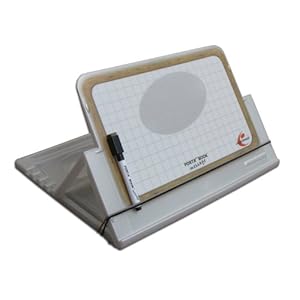
My first item is the PageUP Porta Book. Now, you may not be able to guess what it is from the name, but it is a pretty handy little device. It actually is several devices in one. First and foremost, it’s an angled book holder. It folds in on itself, creating almost a pyramid effect. You can lay a book on one side for reading. You can also use it for writing if you have difficulty writing with the paper flat on the table or desk. Next, you can use it as a clip board, providing a firm writing surface when one isn’t readily available. You can also use it to hold pens, papers, rulers, and other little things you may need to take with you on the go. Do know that the more you use this for storage, the harder it gets to use the angle function. The device is nice, and at $5 (not including shipping), it’s a deal. The PortaBook can be ordered from Portables Plus. They have both Internet and telephone ordering available. It can also be ordered from Amazon.com for around $16 (plus shipping & handling).
Porta-Book portable book holder
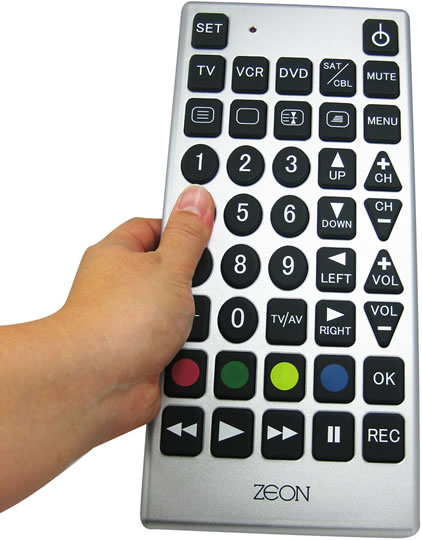
My second item is the Jumbo Universal Remote Control. It’s a nice little find from Innovage Products that can control up to 8 devices. The buttons are large and easy to press, for easy use. The price is reasonably low at $9.99.
Jumbo Remote Control
I've seen these at Home Depot, Ross, Happy Harry’s, and RiteAid. The prices at the different stores has been about $9.99, so that’s pretty well established. K-Mart.com has it listed for $4.99 for a limited time. If the buttons on that remote aren’t big enough, there is the Tek Partner Universal which is a little more expensive, but it does have buttons that are a little bigger and that do light up.
TEK Partner Universal Remote
This remote retails for $39.99 and is available from Amazon.com as well as other online retail outlets. DATI does have this remote available in its inventory if you’d like to try it before you buy it.
My third item is WordTalk, a free plug-in for Microsoft Word that allows it to do text-to-speech. This can be handy for someone who needs text read to them for comprehension.The software will read text by the word, sentence, paragraph, or selection, depending on what the user needs. It also highlights the text as it reads along, allowing a user to visually follow along with the text. Unfortunately, this product does not feature speak-able menu items, so it’s not of much use to the severely visually impaired user. Still, this software is very handy for the user with a learning disability who may need the assistance of having text read for comprehension. The price, free, can’t be beat either! I have tried the software out for a little bit, and it works pretty well. It’s easy to use and the user interface is pretty intuitive so it doesn’t take a long time to figure out how to make it talk.For more information on the software and to download it, go to www.wordtalk.org.uk.
Join us next time when we’ll be looking at more bargains and trying to discover the secret to really great coffee. In the mean time, if you know of any great bargains, hints, or tips that would benefit the group, please send them along. Until next time remember, just because it’s a bargain, doesn’t mean it’s cheap!